Essential Downloads
Verified software drivers, ultra-lightweight Android emulators, and core support packages for high-speed multi-threaded farming.
Blog 1: How to Activate Bulk Profiles in Farming-X Software?
Introduction:
Using Farming-X software, you can easily activate multiple Facebook profiles automatically at once. Let's look at the step-by-step process of how to activate bulk profiles, avoiding the hassle of manual work.
Steps:
- Software Open & Group Selection: First, open the Farming-X software and go to the 'Create' tab. Then select the group where your IDs are stored.
- Select IDs: Select your desired IDs from the group.
- Turn on Active Option: From the options on the right side, check the 'Active' tab.
- Save Configuration: Then click on the 'Save Config' button to save the settings.
- Proxy or VPN Setup (Optional): If you want to use a proxy or VPN, go to 'Settings' and select a Rotation Strategy (e.g., OpenVPN or Proxy Surfboard) from 'Proxy Network'. Leave it as 'None' if not needed.
- Start Automation: Finally, click the 'Start' button at the top. The software will now automatically start working on all your selected profiles and devices.
Blog 2: How to do Auto Reel Posting on Facebook via Farming-X?
Introduction:
Increasing reach by uploading Reels on Facebook is the need of the hour. But uploading reels on multiple pages is quite time-consuming. Through Farming-X, you can post reels completely automatically using multiple emulators.
Steps:
- Select Post Reel: Choose the 'Post Reel' option from the main menu of the software.
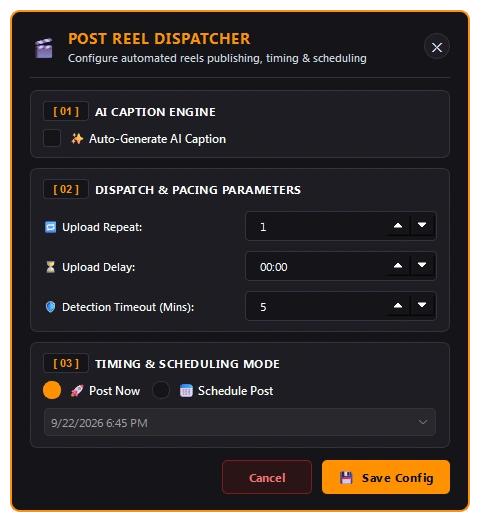
- AI Caption Setup: Go to 'Post Reel Settings' and turn on the 'Auto-Generate AI Caption' option. As a result, the software itself will write an attractive caption while uploading the reels.
- Syncing Emulators: Launch multiple emulators (like LDPlayer) at the same time. The software will automatically open the Facebook app on each emulator.
- Video Uploading: The software will automatically select videos from your set gallery or folder, go to the upload screen, and insert the generated caption.
- Publishing: Once the whole process is finished, the software will automatically publish the reel and get ready for the next reel upload.
Blog 3: Bulk Video Uploading Guideline on Facebook Pages with Farming-X
Introduction:
For those who have many Facebook pages and want to upload many videos at once, Farming-X's Bulk Uploading feature is a magical tool. Let's learn its proper usage.
Steps:
- AI Engine Setup: Go to the 'Uploading' tab and click on 'Settings'. Here you will find two options as 'AI Engine Source' - API and Local. If you have purchased an API, select API, and if you have a good graphics card (above 4GB) in your PC, select 'Local Mode'.
- Upload Repeat & Delay Setting: Go to 'Post Reel Settings'. Write how many videos you want to upload per page in 'Upload Repeat'. And set how long the break will be between two uploads in 'Upload Delay'.
- Publishing Schedule: From 'Scheduling Options', you can choose to 'Post Now' or keep the video scheduled for a specific time via 'Schedule Post'.
- Page Selection & Start: After saving the settings, select your desired pages (where you want to upload). Then simply click the 'Start' button and bulk uploading will begin on all your pages.
Blog 4: Account/Page Backup and Advanced Uploading Process in Farming-X
Introduction:
Keeping a backup of account and page data is highly essential when using automation tools. In Farming-X, you can easily backup IDs and pages alongside doing advanced uploading. The entire process is discussed below.
Steps:
- Account Backup: While your ID is logged into the emulator, right-click on the ID in the software and select 'Direct Backup (No Automation)'. Simply select 'No' in the dialog box and the ID backup will be saved.
- Import Account: To import new IDs, go to the 'Import Account' option. Import the IDs into the software by providing the User ID, Password, and 2FA (if any).
- Advanced Page Backup: To take a backup of the pages under an ID, right-click on the ID and click on 'Advanced Page Backup'. Write one page name per line in the box and click 'Ok'. The software will automatically switch to the pages and take the backup.
- Video Path Setup: To show the video folder for uploading, right-click on the ID, go to 'Change Content Path', then 'Change Video Path', and select your local video folder.
- Working Mode & Uploading: Then select 'Local Mode' from 'Change Working Mode'. Finally, select 'Post Reel' and click the start button, and videos will automatically start uploading from your set folder.
Blog 5: How to Add and Configure Proxies in FB Farming-X?
Introduction:
To keep Facebook accounts safe from IP bans and checkpoints, Farming-X features a built-in proxy engine that supports OpenVPN (.ovpn) files, Rotating Mobile Proxies, and SOCKS5 tunnels. You can either randomize proxies across devices or assign dedicated proxies per account.
Steps:
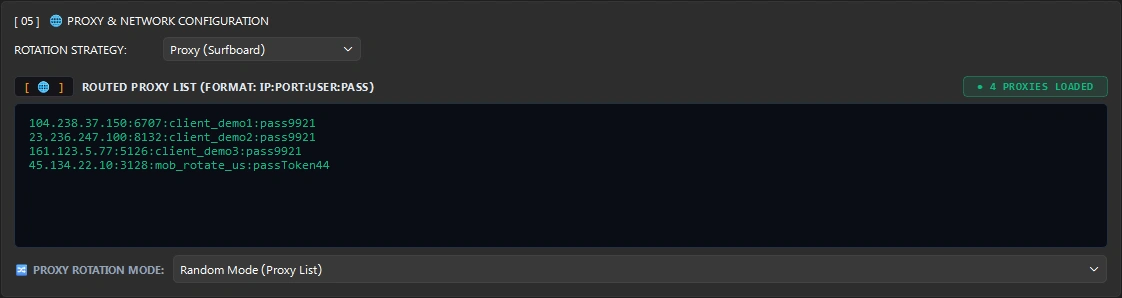
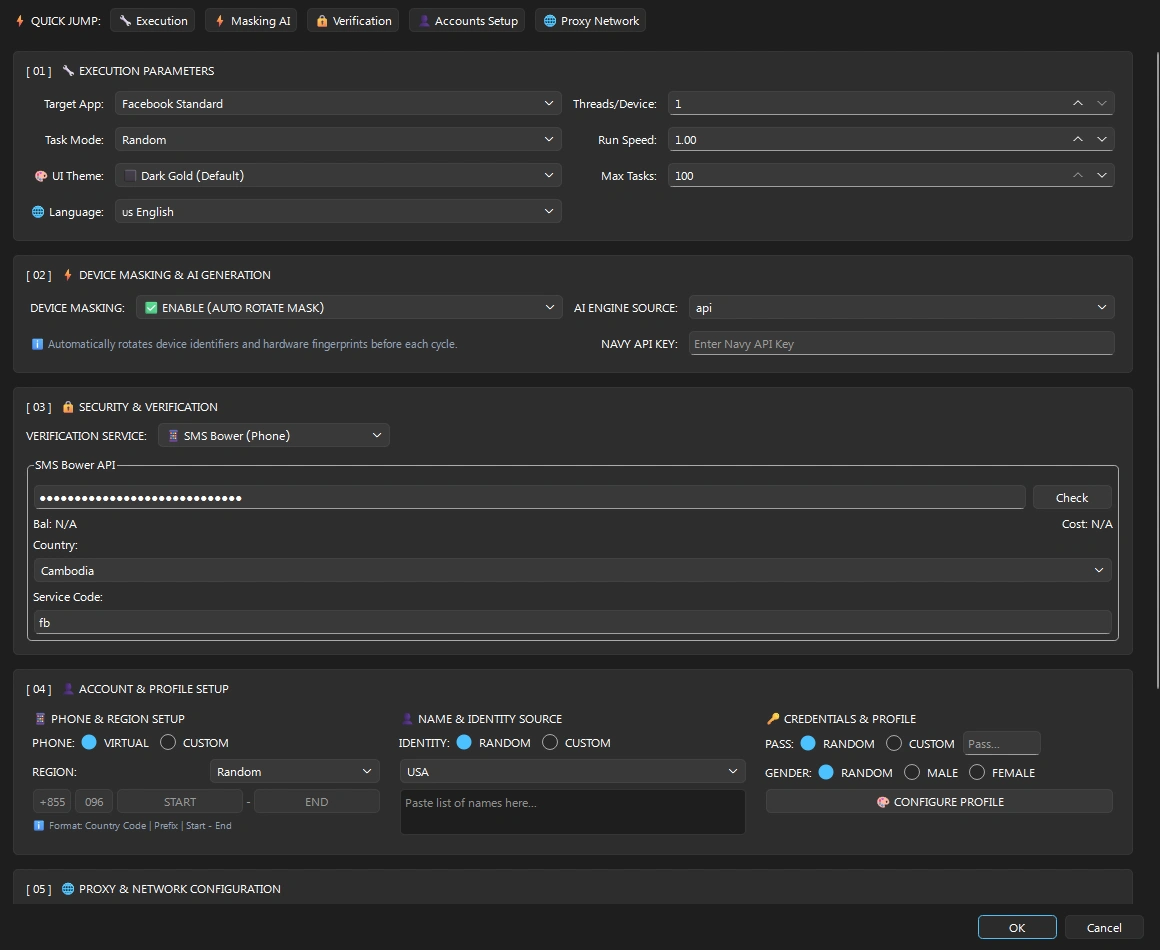
- Open Settings -> Section [ 05 ] Proxy Network: Click the 'Settings' tab in the top navigation bar or click the 'Proxy Network' quick jump button.
- Select Rotation Strategy: Choose 'Proxy (Surfboard)' for HTTP/SOCKS5 mobile proxies, or 'OpenVPN' if you have .ovpn configuration files.
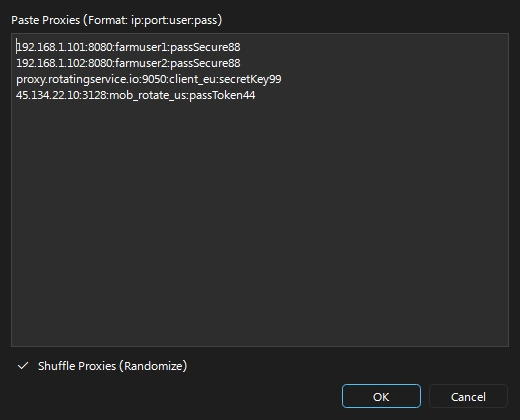
- Import Proxy Pool: Click 'Import Proxies' and paste your proxy list in
IP:PORT:USER:PASSformat. Check 'Shuffle Proxies (Randomize)' if you wish to randomize assignment order. - Set Rotation Mode: Choose 'Random Mode (Proxy List)' for dynamic rotation across all emulators, or 'Assign Mode (Table Proxy)' to lock each proxy to a specific Facebook ID.
- Save Configuration: Click 'OK' at the bottom of the Settings window to save your proxy parameters.
104.238.37.150:6707:client_demo1:pass9921
23.236.247.100:8132:client_demo2:pass9921
161.123.5.77:5126:client_demo3:pass9921
45.134.22.10:3128:mob_rotate_us:passToken44
Blog 6: How to Add and Configure SMS Bower API for Auto Verification?
Introduction:
When creating Facebook accounts with phone numbers, manual OTP entry is impossible at scale. Farming-X integrates directly with SMS Bower (smsbower.app) to automate number purchases, extract OTP verification codes, and auto-refund failed orders.
Steps:
- Get API Key: Sign up or log into your account at SMS Bower (smsbower.app) and copy your private API Key from your profile.
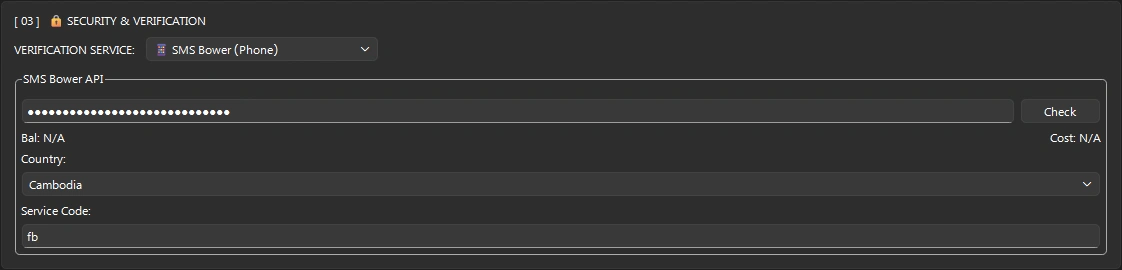
- Open Verification Settings: Go to 'Settings' and navigate to Section '[ 03 ] SECURITY & VERIFICATION'.
- Select SMS Bower (Phone): In the 'VERIFICATION SERVICE' dropdown, choose 'SMS Bower (Phone)'.
- Input API Key & Check Balance: Paste your API Key into the field and click 'Check'. Farming-X will query the server and display your live account balance and current cost per number.
- Configure Region & Service: Set the Country Code (e.g., Cambodia, USA, UK) and ensure Service Code is set to
fb(Facebook). - Auto-Refund Active: If Facebook does not deliver an SMS within the timeout duration, Farming-X sends a cancellation request automatically, keeping your wallet safe.
Blog 7: How to Start Automated Facebook Account Creation?
Introduction:
The Account Create module in Farming-X automates the full account lifecycle: opening emulators, spoofing hardware fingerprints (IMEI, MAC, Android ID), filling human-like registration details, and storing credentials with optional 2FA.
Steps:
- Select Account Create Mode: In the Accounts Manager tab, check the 'Account Create' radio option.
- Configure Name & Identity Source: In Settings -> Section [ 04 ] Account & Profile Setup, choose 'RANDOM' for built-in country names, or 'CUSTOM' and paste your own list of target names.
- Credentials & Gender: Choose 'RANDOM' for alphanumeric secure passwords or set a custom master password. Select Gender (Random, Male, or Female).
- Enable Device Masking: Under Section [ 02 ] Device Masking & AI Generation, check 'ENABLE (AUTO ROTATE MASK)' to guarantee hardware uniqueness before each cycle.
- Set UI Language to English: In Section [ 01 ] Execution Parameters, set 'Language: 🇺🇸 English' for standard English controls across all dialogs.
- Start Creation Loop: Select your active connected ADB emulators on the right-hand panel and click 'START' on the top bar.


Blog 8: How to Start Outlook & Hotmail Creation with OAuth2 Token Dispatcher?
Introduction:
Creating Facebook accounts with permanent email access requires clean, reliable mailboxes. Farming-X has an internal autonomous Microsoft Outlook & Hotmail creator that bypasses bot challenges and dispenses valid OAuth2 tokens.
Steps:
- Select Outlook Create: In the Accounts Manager main menu, check the 'Outlook Create' radio button.
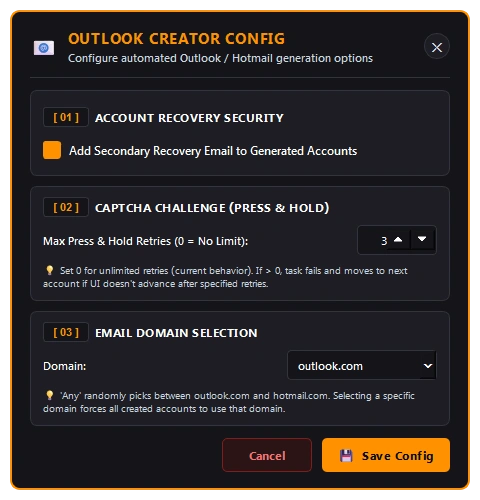
- Configure Recovery Security: Open the Outlook Creator Config window and ensure 'Add Secondary Recovery Email to Generated Accounts' is checked to guarantee inbox persistence.
- Set Captcha Retries: Under 'Captcha Challenge (Press & Hold)', set Max Retries (e.g., 3 retries) so stalled attempts automatically advance to a fresh session.
- Choose Domain: Select 'outlook.com', 'hotmail.com', or 'Any (Random)' from the domain dropdown.
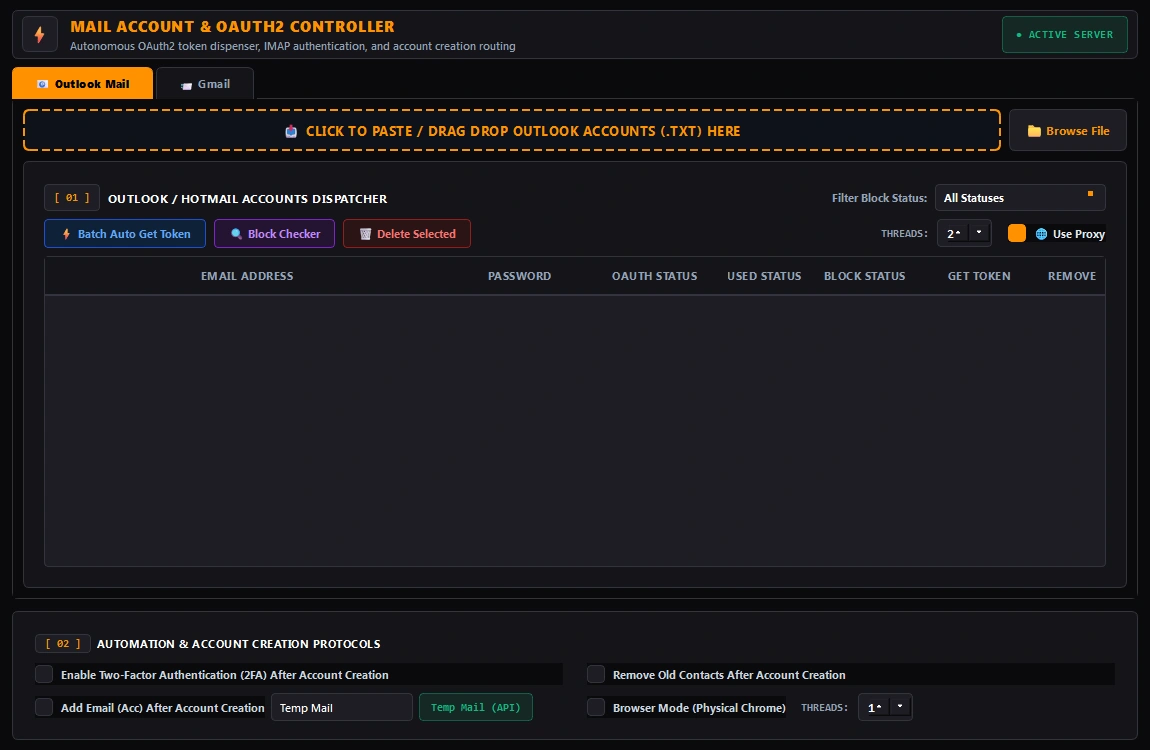
- OAuth2 Token & Block Checker: Open the 'Mail Account & OAuth2 Controller' to review generated mail accounts, perform bulk live block checking, or auto-fetch OAuth2 refresh tokens.
Blog 9: How to Import FB Accounts & Custom Delimited ID Lists?
Introduction:
If you already have existing Facebook accounts from suppliers or backups, Farming-X provides a flexible import modal supporting any separator delimiter or JSON arrays.
Steps:
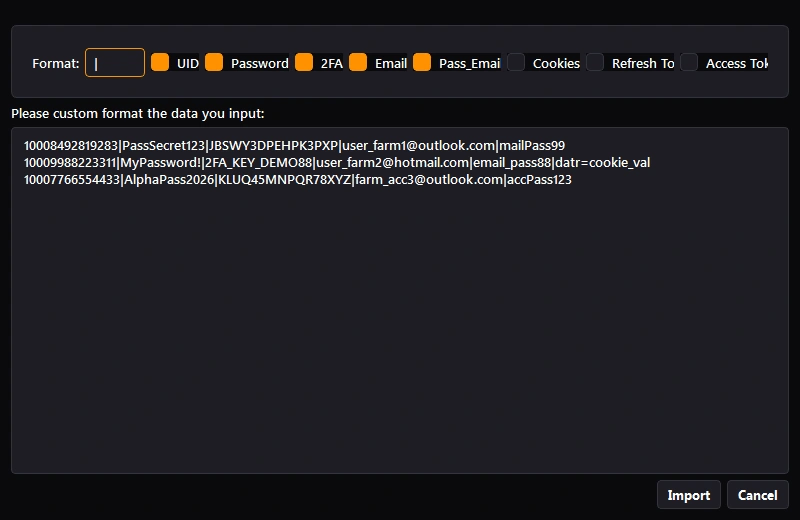
- Open Import Dialog: Right-click on the Accounts Table in the software and select 'Import FB Accounts...'.
- Choose Separator: Select your format delimiter:
|(pipe),:(colon),;(semicolon),,(comma), orTab. - Select Columns: Check the boxes that match your text columns in order: UID, Password, 2FA, Email, Pass_Email, Cookies, Refresh Token, Access Token.
- Paste & Import: Paste your accounts line-by-line in the text box (or paste a JSON list) and click 'Import'. The accounts will immediately populate your target group.
UID|Password|2FA|Email|Pass_Email
10008492819283|PassSecret123|JBSWY3DPEHPK3PXP|user_farm1@outlook.com|mailPass99
10009988223311|MyPassword!|2FA_KEY_DEMO88|user_farm2@hotmail.com|email_pass88|datr=cookie_val
Blog 10: Advanced Modules - Reels Interaction & Global Settings Hub
Introduction:
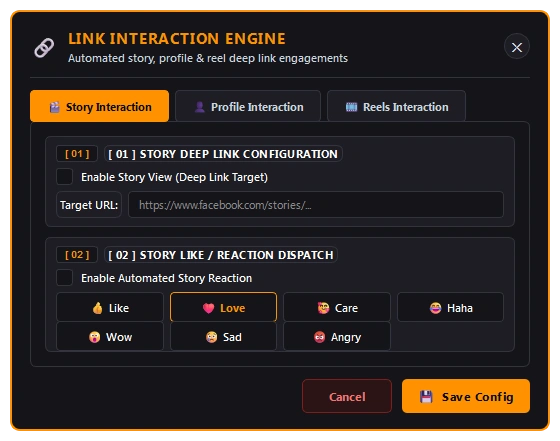
Fine-grained automation controls allow you to configure auto AI reel caption generation, target URL deep-link interactions (bulk follow, like, comment), and profile biographical customization.
I hope these tutorials will be helpful for your blog! You can make slight changes to the lines as per your blog's requirements before publishing.